Running your tests
As TUnit is built on-top of the newer Microsoft.Testing.Platform, and combined with the fact that TUnit tests are source generated, running your tests is available in a variety of ways.
Coverage and TRX reporting are built in. See Extensions for usage flags.
dotnet run
For a simple execution of a project, dotnet run is the preferred method, allowing easier passing in of command line flags.
cd path/to/YourTestProject
dotnet run -c Release
# or with flags
dotnet run -c Release --report-trx --coverage
dotnet test
dotnet test requires any command line flags to be specified as application arguments, meaning after a -- - Otherwise you'll get an error about unknown switches.
cd path/to/YourTestProject
dotnet test -c Release
# or with flags
dotnet test -c Release -- --report-trx --coverage
dotnet exec
If your test project has already been built, you can use dotnet exec or just dotnet with the .dll path
cd path/to/YourTestProject/bin/Release/net8.0
dotnet exec YourTestProject.dll
# or with flags
dotnet exec YourTestProject.dll --report-trx --coverage
or
cd path/to/YourTestProject/bin/Release/net8.0
dotnet YourTestProject.dll
# or with flags
dotnet YourTestProject.dll --report-trx --coverage
Published Test Project
When you publish your test project, you'll be given an executable.
On Windows this will be a .exe and on Linux/macOS there will be no extension.
This can be invoked directly and passed any flags.
The publish folder sits under the runtime identifier you published for, such as win-x64, linux-x64 or osx-arm64. Replace linux-x64 below with yours.
cd path/to/YourTestProject/bin/Release/net8.0/linux-x64/publish
./YourTestProject
# or with flags
./YourTestProject --report-trx --coverage
On Windows, from the win-x64 publish folder:
cd path/to/YourTestProject/bin/Release/net8.0/win-x64/publish
.\YourTestProject.exe --report-trx --coverage
IDE Support
Visual Studio
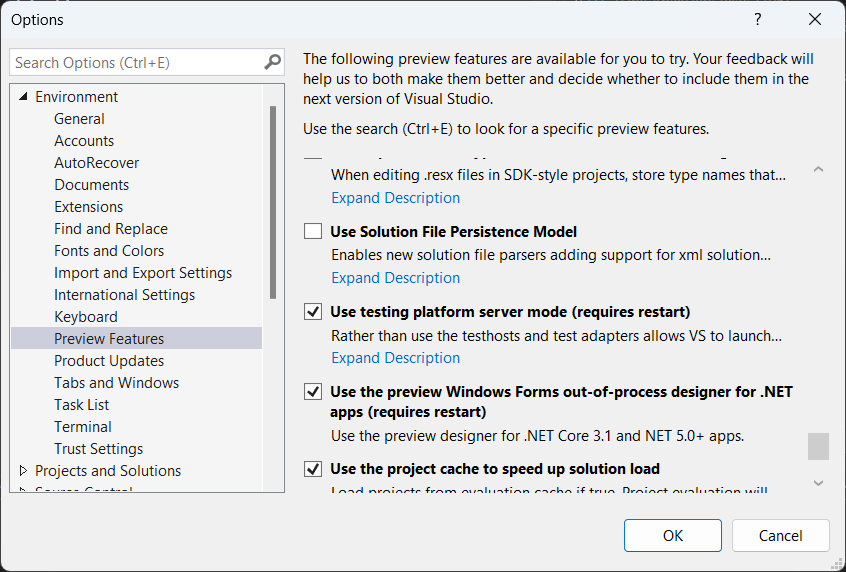
Visual Studio is supported. The "Use testing platform server mode" option must be selected in Tools > Manage Preview Features.
Rider
Rider is supported.
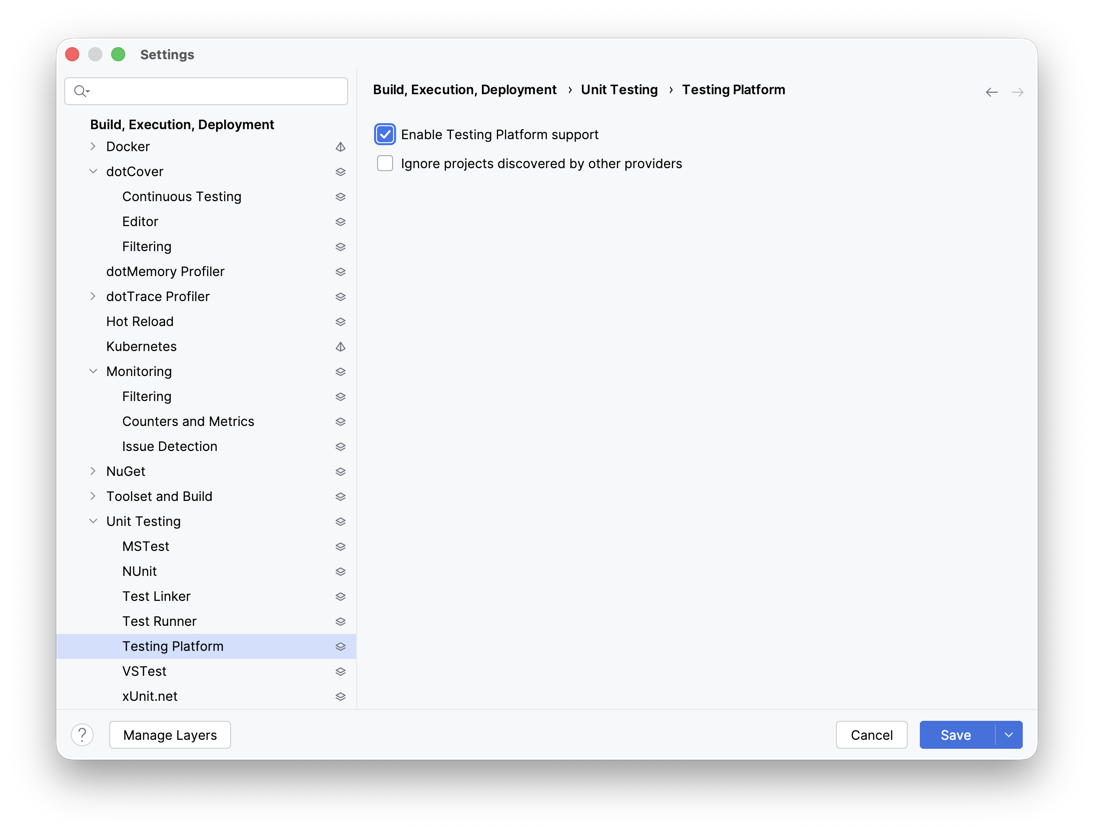
The "Enable Testing Platform support" option must be selected in Settings > Build, Execution, Deployment > Unit Testing > Testing Platform.
VS Code
Visual Studio Code is supported.
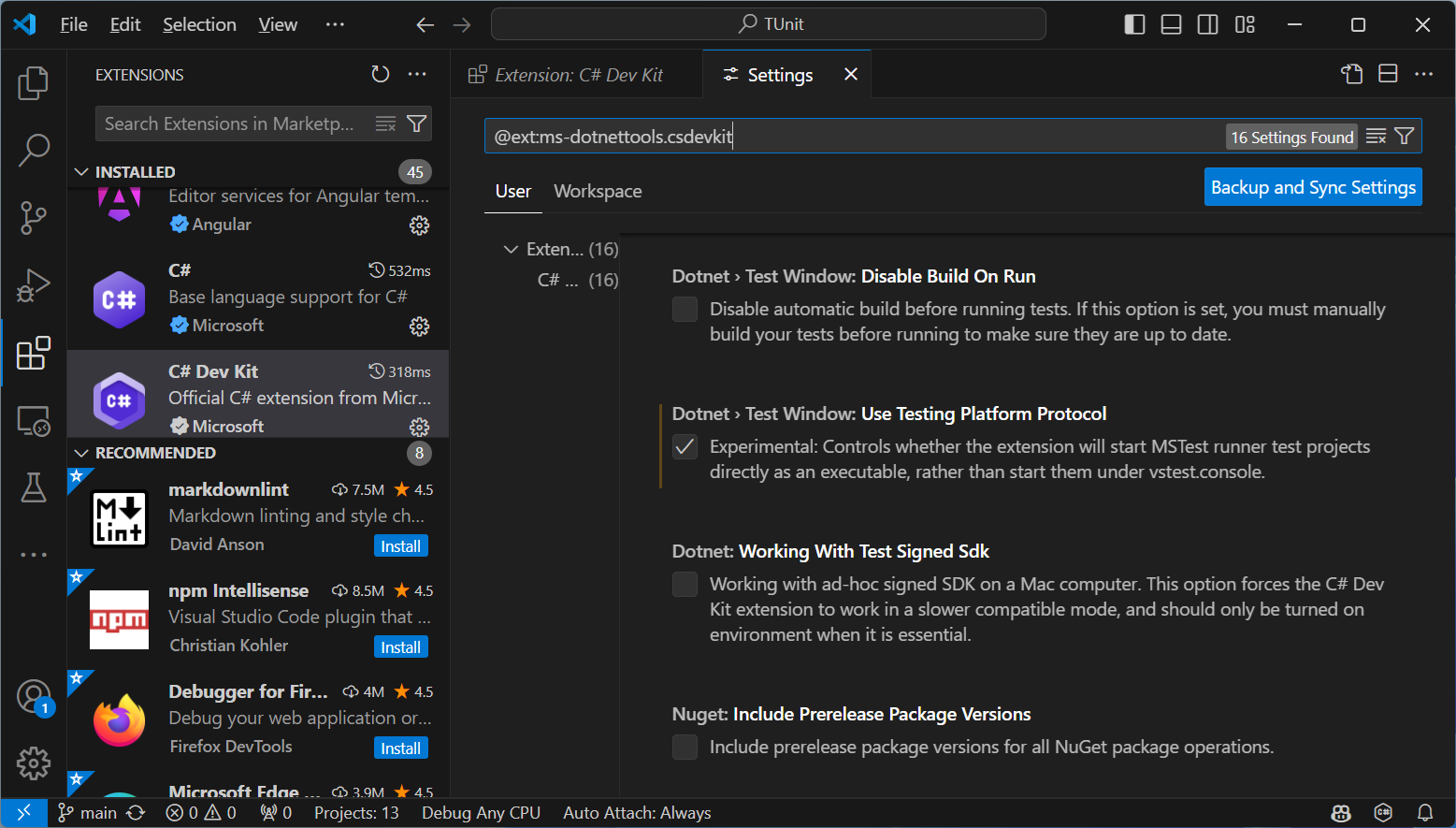
- Install the extension Name: C# Dev Kit
- Go to the C# Dev Kit extension's settings
- Enable Dotnet > Test Window > Use Testing Platform Protocol
What's Next?
You've successfully learned the basics of TUnit! You can now:
- Write tests with the
[Test]attribute - Run them via command line or your IDE
- See your test results
To continue your journey with TUnit, explore these topics:
Core Testing Concepts:
- Assertions - Learn TUnit's fluent assertion syntax
- Test Lifecycle - Understand the test execution lifecycle
- Data-Driven Testing - Run tests with multiple input values
Common Tasks:
- Mocking - Use mocks and fakes in your tests
- Tips & Pitfalls - TUnit-specific tips to avoid common mistakes
Advanced Features:
- Parallelism - Control how tests run in parallel
- CI/CD Integration - Integrate TUnit into your pipeline
Need help? Check the Troubleshooting & FAQ guide.